


Help
Ethics RM User Guides
This page includes the following User Guides:
- Navigating EthicsRM
- Creating a new Project
- Student Research: Individual Research Applications
- Duplicating a Project
- Deleting a draft Application
- Withdrawing an Application
- Adding Comments
- Responding to Prescreening
- Corresponding with the Ethics Team
- Submitting a Report
- Closing a Project
- Printing/Downloading an Application
- Resetting your password
- Submitting an Amendment request
- Approve a sign-off request (for University and Health New Zealand approvers)
If you need support that cannot be addressed by the information on this page, please refer to Contacts.
01 – Navigating Ethics RM
Your Ethics RM WorkArea
The WorkArea is your homepage in Ethics RM. It is the first page you see after signing in and is where you can view, create, and manage all your ethics applications and projects.
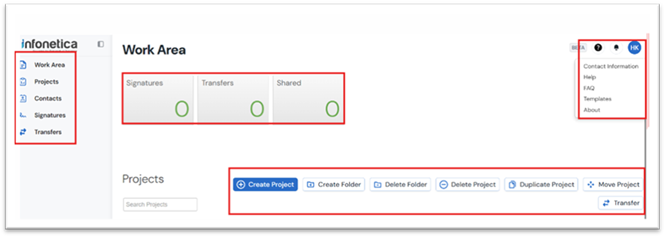
Left-side Navigation Bar
This menu stays visible throughout the system and allows you to access key pages:
- Work Area – Return to your main Ethics RM homepage from anywhere in the system.
- Projects – View a full list of your projects.
- Contacts – Manage the project team contact details, including details for the Principal Investigator (Project Owner).
- Signatures – View applications awaiting your digital signature.
- Transfers – View projects pending ownership transfer to your account.
WorkArea Notifications Tiles
These tiles help keep you informed and prompt action when required:
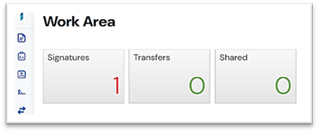
- Signatures – Shows applications requiring your digital signature.
- Transfers – Displays incoming project ownership transfer requests.
- Shared – Shows projects shared with you by other users.
Question Mark (?) Help Menu
Located at the top-right corner of the screen, this menu provides access to support resources:
- Contact Information – View contact details for ethics committees (UAHPEC, AHREC, AEC, UABSC) and Health NZ Admin Offices.
- Help – Access Ethics RM user guides for managing applications.
- FAQ – View frequently asked questions.
- Templates – Access commonly used templates for each committee (UAHPEC, AHREC, AEC or UABSC).
- About – Learn more about the Ethics RM system and its vendor, Infonetica.
Work Area Action Panel
The Work Area panel provides the following actions:
- Create Project – Start a new ethics application.
- Create Folder – Organise projects within your Work Area.
- Delete Folder – Remove an empty folder.
- Delete Project – Remove an unsubmitted application.
- Duplicate Project – Copy an existing application (available to Project Owners only).
- Move Project – Move a project into a folder.
- Transfer – Transfer project ownership to another user.
Project List
- All Projects not assigned to folders appear in the main Project List below your action panel.
- Click the arrow next to a project title to expand and view project details and associated sub-forms.
- You can drag projects into folders for organisation.
Emails and Notifications
System Emails
Sent from: donotreply@Infonetica.net
- Emails you receive depend on the role you hold in a project.
- All listed Principal Investigators will receive application receipt, approval, and closure emails.
- Only users assigned a role with edit access will receive comments, reminders, and reviewer updates.
- You cannot unsubscribe from system emails. If you are receiving them in error, contact the Project Owner listed in the email and ask to be removed as a collaborator.
System Notifications
These are sent at the same time as emails and can be viewed in Ethics RM:
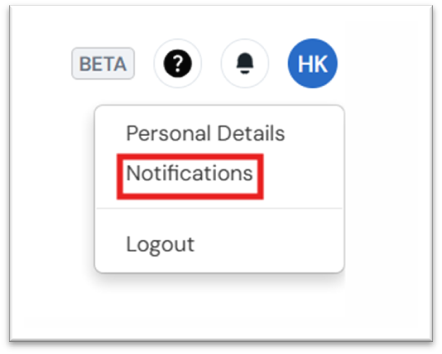
- Click your initials icon in the top-right corner.
- Select Notifications from the dropdown list.
- Click a notification to open the related project.
- You can delete, mark as read/unread, or flag notifications as important.
02 – Creating a Project
Create a Project
To begin a research ethics application, you first need to create a project in Ethics RM.
From your Work Area:
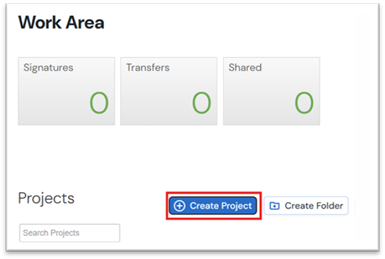
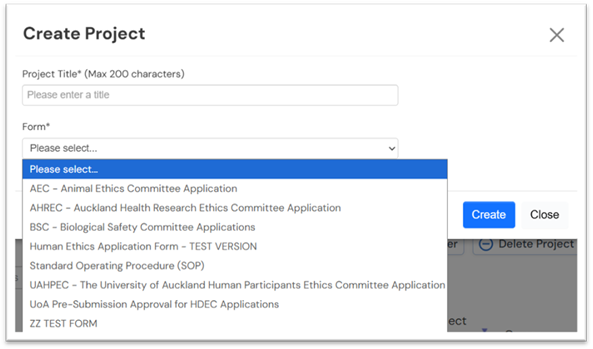
- Click Create Project from the top action panel.
- Enter a Project Title.
- From the Main Form dropdown list, select the appropriate form (e.g. Human Ethics Application Form – Test Version).
- Click Create.
⚠️ Important:
In Ethics RM, the person who creates the project is automatically recorded by the system as the Project Owner and listed as the Principal Investigator (PI) on the application form.
This will take you to your Application Workspace (Project homepage).
Complete the Application
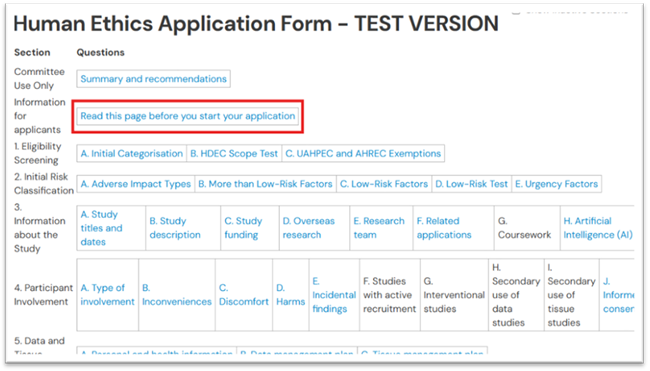
- Click Read this page before you start your application to begin.
- Work through the form using the Previous and Next buttons located at the bottom of the screen. These buttons let you move between sections sequentially and save your progress. Clicking Previous or Next will automatically save your responses.
- To return to the main application workspace at any time, click Navigate from the action panel.
Application Declaration and Academic Head Sign-off Request
In line with University of Auckland policy, only the main Principal Investigator (PI) — who is also the Project Owner in Ethics RM — can complete the Application Declaration and request Academic Head sign-off.
Confirm the PI details
- Ensure the correct person is listed as the Principal Investigator (PI) for the project. This person must also be the Project Owner in Ethics RM.
Note: If you’re a student, co-investigator, or collaborator who created the application and are listed as the PI/Project Owner, you must transfer project ownership to the correct PI before submission. See Student Research: Individual Research Applications section for further information on how to transfer project ownership.
Run a Completeness Check
- Navigate to the Project Home page.
- Click on the Completeness Check tab in the action panel to review whether all required sections of the form. have been completed.
- If any sections are marked as incomplete, return to the form and ensure all required fields are filled in before proceeding.
Request Academic Head Sign-off
- Once the form passes the check, click Request Signature to send the declaration to the Academic Head for review.
⚠️ Can’t see the Request Signature button?
- Check for a red warning banner at the top of the project home page.
- If you see it, click Update to refresh and unlock the sign-off option.
- Once the Academic Head signs off, the application is automatically submitted to the Ethics Team.
- All listed Principal Investigators will receive a confirmation email within approximately 15 minutes of submission.
Re-routing a Sign-off Request
If a sign-off request was sent to the incorrect person, or if the original Academic Head or delegate is unavailable, the request can be re-routed to someone else with the authority to sign.
To re-route a sign-off request, follow these steps:
• In your Work Area, open the relevant project.
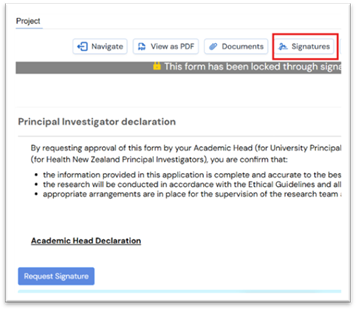
• Go to the Principal Investigator Declaration section in the form.
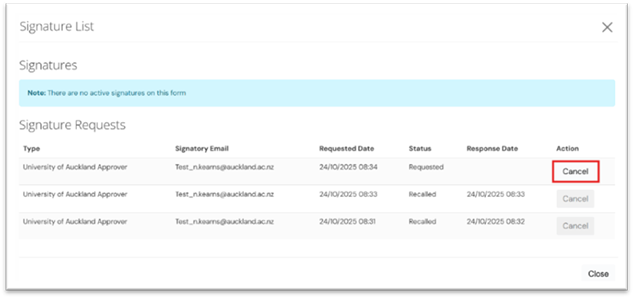
• From the top navigation bar, click the Signatures tab. A window will appear with the list of signature requests.
• Click Cancel next to the relevant signature request and once cancelled click Close.
• Return to the declaration page and click Request Signature again.
• Enter the email address of the correct Academic Head or delegate, add a message (optional), and click Request.
📌 Note: You can only re-route a sign-off if the original recipient has not yet signed the application.
03 – Student Research: Individual Research Applications
Student Access to Ethics RM
- All University of Auckland Master’s and PhD students are automatically granted access to Ethics RM. So, no additional setup is required.
- Honours students do not automatically have access and must be manually added to the system:
- The Academic Supervisor must call the Student Services Centre (SSC) to request access for each course.
- Only one request per course is needed — once granted, all students enrolled in that course will have access.
- 📞 Call SSC on x86000 (7:30am–6:00pm, standard business days).
- The course ID is required when making the request.
💬 Tip: Requests can also be submitted via the standard IT service portal, but turnaround is typically 4 days. Calling SSC is recommended for faster processing.
⚠️ Reminder: Students cannot start creating or editing applications until access is confirmed and they have logged in to Ethics RM at least once.
University of Auckland Ethics Application Process for Students and Supervisors

📌 Workflow Steps:
- PI Creates the Project in Ethics RM.
- The PI becomes the Project Owner and is listed as the Principal Investigator on the form.
- PI shares access with the student
- Use the Sharing a Project section to grant the student edit access.
- Student completes the application form
- The student fills in all required form sections online.
- PI performs a Completeness Check
- The PI must review the full application to ensure all questions are answered and documents uploaded.
- PI requests Academic Head Declaration
- This must be initiated by the PI (not the student).
- Application submitted for ethics review
- Once signed off by the Academic Head, the system automatically submits the application to the Ethics Team.
- Wait for ethics approval before starting research
- Research activities must not begin until approval is granted
⚠️ Important:
- For student-led research, the Project Owner must be the University of Auckland supervisor with overall responsibility for the project. Students CANNOT be the Project Owner.
- Students must not complete the Application Declaration or request signature for Academic Head sign-off . These actions can only be performed by the Principal Investigator (Supervisor).
- If a student creates the application, they must transfer ownership to their supervisor using the Transfer a Project Ownership function. Only the supervisor/PI can perform the Completeness Check and request Academic Head sign-off.
Sharing a Project
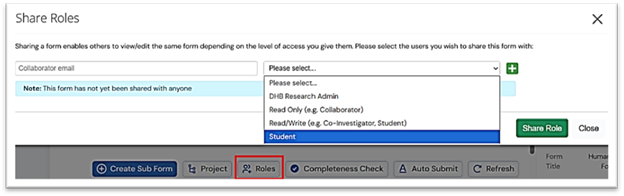
To share a project with UOA Collaborators/Students:
- Open a project in your WorkArea.
- Click Roles in the Action Panel.
- Enter the collaborator's email address. This must be a University of Auckland email address
- Select the required role from the dropdown list. The selected role will apply to the entire project - that's the main form and all existing and future sub-forms.
- Use the green + button to list additional collaborators and assign their role
- Click Share Role to save.
Note: Only University of Auckland staff or students, and Health NZ staff with a UoA Customer account and access to Ethics RM, can be assigned a role and granted access to a project in Ethics RM.
For external users who do not have a UoA account, please refer to the relevant guide on the ResearchHub: (Insert link here).
To remove a collaborator:
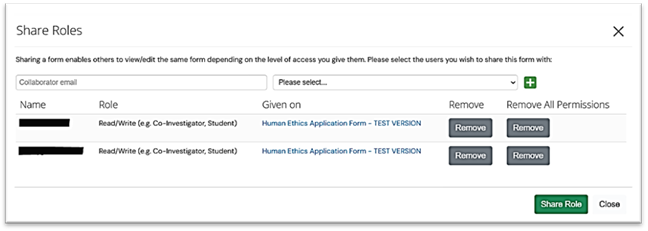
- Click Roles to view all collaborators who have been assigned roles on the selected project.
- Click Remove to remove a specific role that has been assigned to a collaborator, or, if the collaborator has multiple roles and is therefore listed multiple times, you can click Remove All Permissions for this person. If a collaborator is listed multiple times, the role with the highest level of access will apply.
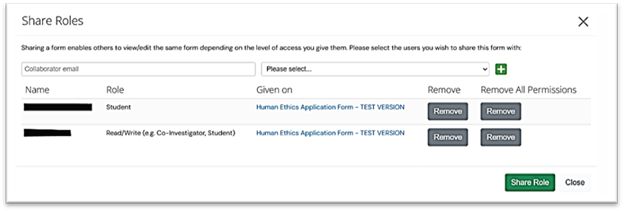
Note: You can not edit an existing role, but you can remove roles and re-assign a new role if required.
Transfer a Project Ownership
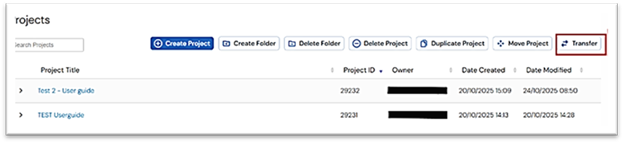
To transfer a project:
- In your WorkArea, click Transfer in the left side action bar.
- Enter the email address of the new Project Owner. This must be a University of Auckland email address.
- Select the relevant project from the list
- Click Transfer to complete the action. The new Project Owner will receive an email to inform them of the transfer request.
To Accept or Reject a Transfer:
- Click on the link in the transfer request email,
- Or, if beginning from your WorkArea, click Transfers then click View Project.
- In the project action panel, click Accept Transfer or Reject Transfer.
- If the transfer is accepted, the project will now appear with the WorkArea project list of the new Project Owner. The previous Project Owner will no longer see this project in their project list. The new Project Owner may need to provide them with collaborator access.
Note: Transfers of approved projects require an amendment to be submitted.
Managing Your Project
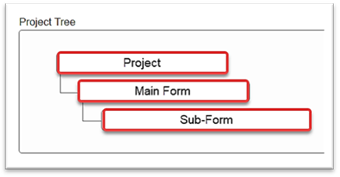
In the project view, the project tree displays the forms which have been created for a particular project.
- The top (Project) level displays the Project title
- The second (Main Form) level displays the main form type that was selected when the project was created
- Any forms listed beneath the main form are referred to as sub-forms. These include Adverse Event reports, annul reports etc.
- Clicking on any form in the list will display the form status details and the form contents in the navigation section below.
Project Overview
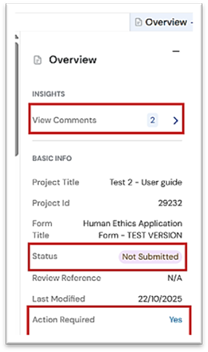
The Project Overview tab is located on the right side of the project homepage. Click on Overview to expand the panel. This section provides a summary of your application’s status and includes the following:
- Action Required on Form
- If Yes – Click Yes to view a list of remaining mandatory questions that still need to be completed.
- If No – All mandatory questions have been completed, and the form is ready to be submitted (or has already been submitted).
- Form Status
- Displays the current progress and submission status of the form.
- Collaborator Comments
- Shows any comments added by the Principal Investigator (PI) or other collaborators on specific sections of the form.
Form Statuses
Not Submitted | Application has never been submitted |
Submitted by Applicant | Application has been submitted but has not yet been assigned for review |
Under Review | Application is under consideration by the relevant committee |
Further Information Required | Reviewers have provided comments which need to be addressed before the application is submitted again |
Approved | Application is approved |
Approved with Condition | Application is approved but specific conditions apply. Refer to the conditions on the approval email |
Empowered |
|
Closed | Project has closed. No further work is to be conducted under this approval |
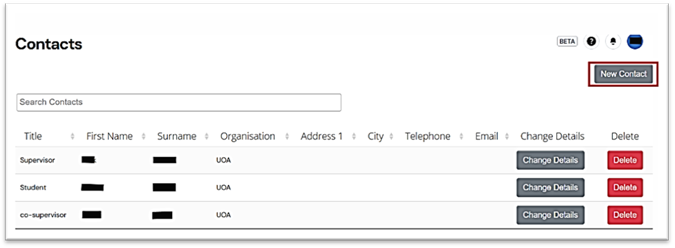
Adding a Project Contacts Details
To add members of your project team:
- Click New Contact in the Contacts section.
- Enter the team member’s Title, First Name, Last Name, Organisation, and any other required fields.
- Click Save to add them to the project.
⚠️Note:
Adding someone to the Contacts section does not give them access to the project in Ethics RM. To give access, use the Share a Project function and assign them a role.
Removing a Project Team Member
To remove someone from the Contacts list:
- Click Remove next to their name.
- Then go to the Roles tab and remove their assigned role/access from the project (See Sharing a Project section).
4. Duplicating a Project
Project Owners are able to duplicate the content of an existing project into a new application. This function is useful if you have multiple projects with similar content, or if you need to replace an expired application.
Note: Do not duplicate a form to submit an amendment to an approved application.
All form content will be duplicated into the new project except for any attached documents which will need to be uploaded manually.
Animal Ethics users will also need to manually update the Animal Ethics tab since species information cannot be duplicated.
To duplicate a project:
- In your Work Area click Duplicate Project. Do not select 'including sub-forms'.
- Enter the new project title.
- Click Duplicate.
- Edit and submit the new application – ensure that all information duplicated is relevant to the new application.
- Do not upload legacy files or previously approved amendments – if these are still relevant, the content should be added to your responses to the form questions so that your new application can be reviewed as a standalone application.
5. Deleting a draft Application
If you have created an application that you no longer wish to submit, you can delete it from your Work Area.
The delete option is not inside the application form.
To delete an unsubmitted draft:
- Go to your Work Area and open the Projects tab.
- Click Delete Project from the top action bar.
- In the pop-up window, select the project you wish to delete from the dropdown list.
- Click Delete to confirm.
- The project will be removed from your active list and will not be visible under “My Applications.”
Notes: You can only delete projects with status = Not Submitted. Once deleted, the project cannot be restored or edited.
Do not delete Approved Projects
If you have an approved project, which you would like to close or amend, you must not delete nor withdraw the application. Instead, refer to:
- Submitting an Amendment Request, or
- Closing a Project
6. Withdrawing an Application
If you no longer require an application which you have submitted but is not yet approved, you are able to withdraw it if the status displays 'Further Information Required'.
To withdraw an application, follow these steps:
- Open the relevant project.
- Click Withdraw in the action panel.
- Add a note to indicate why you are withdrawing the project.
If you cannot see the withdraw button, contact the Ethics Team for advice.
7. Adding Comments
Adding Comments
Principal Investigators, supervisors, and collaborators can add comments to specific questions within the application form — for example, a student may want to check a response with their supervisor before submission.
🔒 Note: Comments are only visible to project collaborators who have access to the application.
They are not visible to Committee Members or the Ethics Team.
Use comments as a collaborative tool to review and refine responses before submitting your application.
To add a comment:
- Click the comment bubble icon next to the relevant question.
- Click Add New Comment, type your message, then click Save.
- To view or edit a comment, click the comment icon again.
- To see a summary of all comments, go to the Project Overview panel and click Comments.
8. Responding to a Pre-screening
Once your application has been submitted, it may be returned to you by the Ethics Team following a pre-screening review. This means the application requires some minor or major changes or clarifications before it can proceed to full committee review.
1. Notification of Re-Work
- You will receive an email notification from donotreply@infonetica.net advising that re-work is required on your application.
- Click the link in the email to log into Ethics RM.
2. Accessing Reviewer Comments
- In your WorkArea, select the relevant project.
- On the project homepage, click the Reviewer Comments tab from the action panel.
- A list of comments will appear. Click each comment to be taken to the specific question needing review.
- Make the necessary changes to the question fields.
📌 Repeat this process for all comments listed under Reviewer Comments.
3. Updating Attached Documents (if required)
If one or more documents require updating:
- Navigate to the relevant question where the original document was uploaded.
- Click Delete to remove the outdated file.
- Click Upload Document, then click Browse to locate and upload the new version.
- Enter:
- A new Version Date
- A new Version Number
📌 These fields are important to indicate to the Ethics Team that the document has been updated.
4. Submitting the Re-Worked Application
Once all changes are complete, you need to resubmit the application. The steps differ slightly depending on the Committee.
For Human Ethics Applications (AHREC & UAHPEC):
- Navigate to the project homepage.
- Go to Section 10: Response to Pre-screen.
- complete Questions 10.A.1 and 10.A.2.
- Once complete, click Submit.
- After submitting, the form will be returned to the Ethics Team for further review. You and the listed PI will receive an email confirmation once it has been successfully re-submitted.
For Animal Ethics Committee
1. Click Submission and Sign-off section in the project homepage
2. Select Response to pre-screening for Application Type
3. Click Sign to submit the application 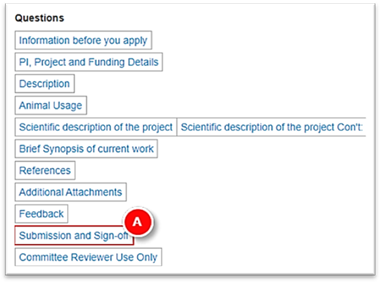
For the University of Auckland Biological Safety Committee
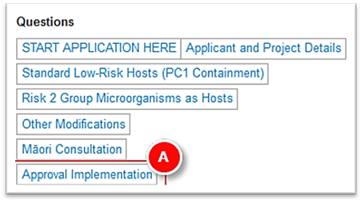
1. Click Approval Implementation
2. Select ‘This is a new APP202708 Approved User application (initial submission or rework to the application prior to the Committee approving your application)’.
3. Tick the Check Box to confirm have read and understood the conditions and click Sign.
⚠️ Note: Additional sign-off is NOT required when submitting a re-worked application in response to pre-screening feedback.
All investigators listed on the project will receive an email receipt upon submission.
If you cannot see the submit button:
- Click Collaborators to see whether you have been given access to submit by the Project Owner. If you have read-only access, or full access except the ability to submit, the Project Owner will either need to edit your access to the project or click submit themselves.
- If you have access to submit, but cannot see the submit button, check for a red warning banner across the top of the project home screen. If you can see this, click Update to enable the submit button to appear.
Compare with Previous Submission
To view all changes made to a submission since the previous submission:
- Open the Project, then open a page of the form.
- Click Compare with Previous Submission.
- Any changed questions will be listed on the This Page, or All Changes tab.
- Removed responses will be highlighted in red, whilst new content will be highlighted in green.
- Changes made by all collaborators with edit access will be listed.
- Changes may include new questions added or removed due to form updates.
- The form is not editable when viewing changes compared to the previous submission.
9. Corresponding with the Ethics Team
The correspondence function enables researchers and the Ethics team to send messages regarding specific projects in Ethics RM. This is the preferred method of communication about specific projects since all messages are saved within the system, and it's clear to both parties which project a message is referring to.
When an Ethics Advisor sends you a correspondence message, you will receive an email with the subject 'ERM Correspondence Received'. To read the correspondence, click on the link in the email to navigate to the project, or open the project and click on the Correspondence Tab.
Close the message and click New Correspondence to reply.
To send a new correspondence message:
- Open the relevant project.
- Click Correspond in the action panel
- Enter a message for the Committee Secretary
- To attach a file, click Choose Files and follow the prompts. You can attach multiple files if they are stored in the same folder.
- Click Send. The system automatically generates a notification to the Ethics Team.
To view previous correspondence, click the Correspondence Tab.
Correspondence messages can only be sent on projects that have been submitted. If you have a query regarding an application which you have not yet submitted, Ethics Team via email.
Correspondence messages sent by Ethics Team Advisors will only be sent to those with collaborator access to the project.
10. Submitting a Report
Where applicable, annual reports, final reports, research reports and incidents or adverse events are submitted in Ethics RM as a sub-form of the main application. All sub-forms linked to a project are listed beneath the main application form in the Project Tree.
Only the Project Owner or collaborators with full access are able to create sub-forms. Sub-forms can only be created once the main form has been approved.
To submit a report, follow these steps:
- In your Work Area, open the project you wish to submit a report for.
- If you can see a red banner advising the project needs to be updated, click Update.
- Click Create Sub-Form in the action bar.
- Select the relevant report from the dropdown list.
- Complete the form.
- Click Submit.
📌Note: All investigators listed on the application will receive an email receipt upon submission.
11. Closing a Project
Projects should be closed once the work is complete. To close a project, submit a final report.
12. Printing/Downloading an Application
To print/download an application form:
- Open a project.
- Click View as PDF.
To print the form:
- Click Documents
- Untick any documents that are not required in a printed view
- Click View Selected to print. Or click Download All to download a ZIP file of the application and all selected attachments.
13. Resetting your Password
If you have forgotten your University of Auckland password or need to reset it, follow the steps below using the Password Reset Wizard.
- Go to the University of Auckland website: www.auckland.ac.nz
- Click on About us from the top menu.
- In the About the University menu, select Identity and access management.
- Click on Password management.
- Under this section, click on Change or reset your password.
- The Password Reset wizard will open.
- Enter your username, ID number, or email address.
- Follow the on-screen instructions to complete your reset.
📌 Tip: If you do not have a University of Auckland username, please refer to the Onboarding for External Users guide.
14. Submitting an Amendment Request
Submitting an Amendment Request
Once an application has been approved by a University of Auckland Ethics Committee, any required changes to the project needs to be made to the original application.
To submit an Amendment request, follow these common steps first, regardless of which ethics committee you're submitting to.
Step 1 – Request to Unlock the Application
- Go to your Work Area in Ethics RM.
- Open the relevant project.
- Click the Correspond tab from the action bar.
- Write a message requesting the application be unlocked for amendment.
- Click Send. This correspondence will be sent to the Ethics team, who will review and unlock the form.
- When the Ethics team unlock your application, an email notification will be issued confirming the form is unlocked, enabling you to make changes.
- Click on the link in the email to access the application form.
Note: Only the Principal Investigator, supervisor or Head of Department can request to unlock an application for an amendment.
Step 2. Submit the Amendment – Based on Your Committee
Human Ethics Committee (UAHPEC & AHREC)
- Open the unlocked application.
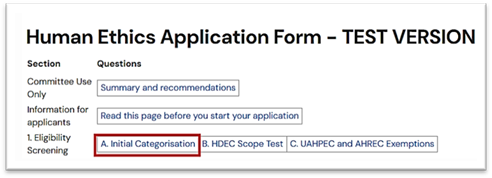
- Navigate to Section 1. A Initial Categorisation and Select 'Amendment Request'. Edit the responses as needed.
- Proceed to update Sections 1 – 9 of the form as required in response by the amendment.
- Complete Section 12 – Amendment Request Details of the form.
- To replace a document:
- Go to the relevant section.
- Click Delete next to the old document.
- Click Upload Document.
- Once uploaded, update the date and version number.
- Click Save.
- Previous versions are saved in the Documents tab.
- Click Sign to submit the amendment.
Note: Only the Principal Investigator (PI) is required to sign the amendment application- Academic Head sign-off is not required.
AEC – Animal Ethics Committee
- Go to the Submission and Sign-off section of the form
- Set Application Type to: Amendment Request – AEC
- Clicks Sign to submit the amendment.
BSC – Biological Safety Committee
- Navigate to the Approval Implementation section
- Tick the checkbox to confirm agreement to safety conditions
- Clicks Sign to submit the amendment.
Note: The same process should be followed for any subsequent amendments.
16. Approve a sign-off request (for University and Health New Zealand approvers)
Approve a Sign-off Request for an Application (For Academic Head or Delegates)
Before an ethics application is submitted to the Ethics Committee for review, it must first be signed off by the Academic Head (or delegate).
If you've received a request, follow these steps:
- You’ll receive an email from: donotreply@infonetica.net
- Click the link in the email. You’ll be automatically logged into Ethics RM via Single Sign-On.
- Click the Signatures tile in your Work Area. A window will appear with the list of all signature requests.
- Click View Form next to the signature request.
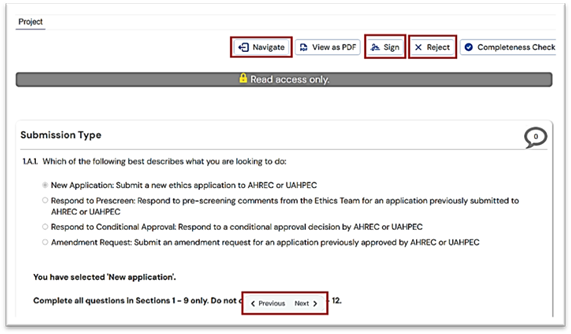
- Scroll through the application using NEXT or Previous tab at the bottom of the page.
- Or use the Navigate tap on the top of the page to go to the project home page where you can see all sections of the form and jump between different sections of the form.
- Review all fields and ensure information is correct.
- Once you’re ready to approve or reject the application:
✅ To Approve:
- Click Sign
- Click Accept
- Click Sign again to confirm.
❌ To Reject:
- Click Reject
- Enter your reason for rejection.
- Click Reject to confirm.
📌 Note: Once all required signatories have signed off, the application is automatically submitted to the Ethics Team for review.